
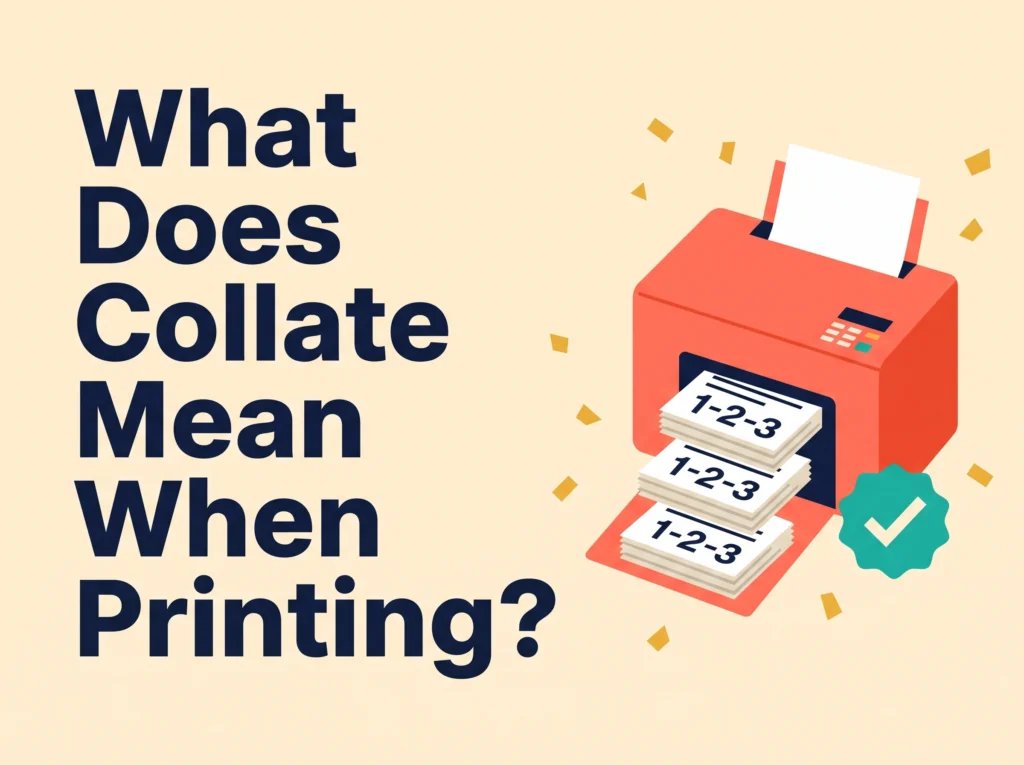
You click Print, and there it is: a small checkbox that says “Collate.” Should you tick it? What does it even do?
The good news is that it’s one of the easiest print settings to understand. This quick guide explains what collate means, how collated vs uncollated printing works, and how to use it in Microsoft Word, Adobe Acrobat, Google Docs, Mac, and Windows. No more sorting stacks of pages by hand.
Collate means your printer prints multiple copies of a multi-page document in complete sets, in the right page order (1-2-3, 1-2-3). Uncollated means all copies of page 1 print first, then all copies of page 2, and so on (1-1, 2-2, 3-3). Choose collate when you want ready-to-use sets.
Key Takeaways
- Collate means printing full, ordered sets of pages.
- Uncollated printing groups identical pages together.
- Collate matters only when you print more than one copy of a document with two or more pages.
- Most printers turn collate on by default.
- On office copiers, “Sort” usually means collated and “Group” means uncollated.
1. What Does Collate Mean When Printing?
Collate comes from the Latin word collatus, which means “brought together.” In printing, it means gathering pages into the correct sequential order so each copy is a finished set.
Here’s a simple example. Say you need 3 copies of a 4-page report.
- Collated: You get 1-2-3-4, 1-2-3-4, 1-2-3-4. Each set is ready to staple and hand out.
- Uncollated: You get 1-1-1, 2-2-2, 3-3-3, 4-4-4. You must sort pages yourself.
That’s it. Collate printing saves you from arranging pages by hand, which is a big time-saver for handouts, reports, presentations, and booklets.
Also Read: What Are the 7 Functions of Packaging? (With Real Examples)
2. Collated vs Uncollated Printing: What’s the Difference?
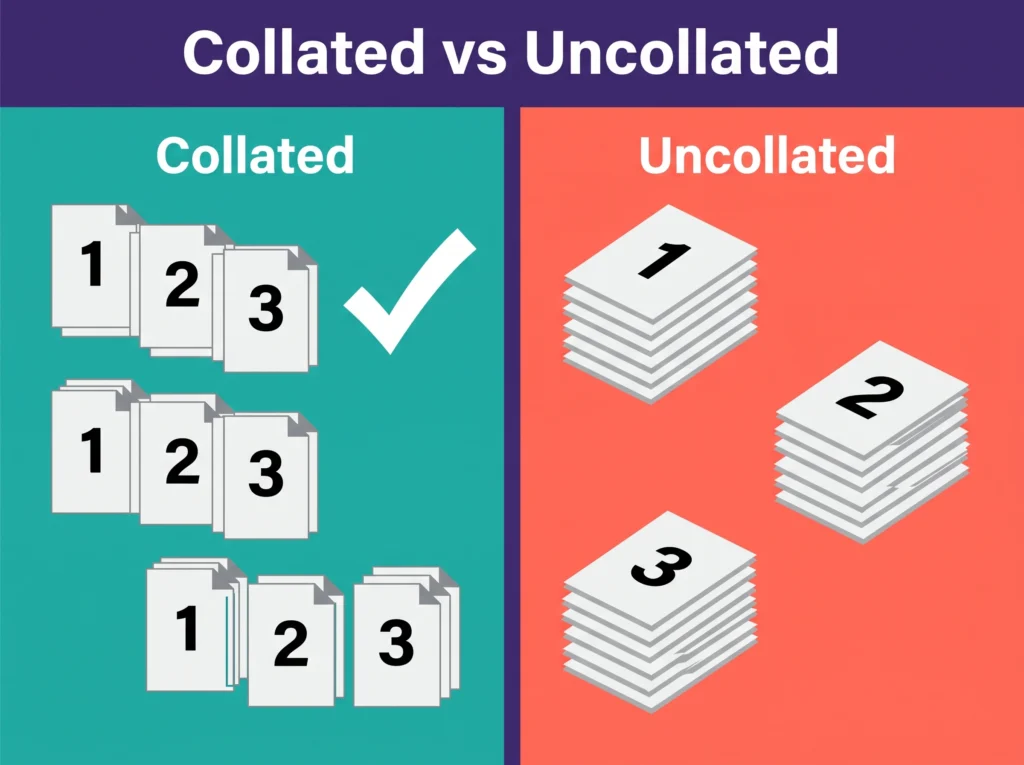
This table shows the difference between collated and uncollated printing at a glance.
| Feature | Collated Printing | Uncollated Printing |
|---|---|---|
| Page order | 1-2-3, 1-2-3 | 1-1, 2-2, 3-3 |
| Output | Complete, ready-to-use sets | Stacks of identical pages |
| Sorting needed? | No | Yes, by hand |
| Best for | Reports, manuals, handouts, booklets | Flyers, forms, single-page sheets |
| Stapling | Works with auto-staple | Not practical |
| Printing speed | Can be a little slower on some printers | Often slightly faster |
| Default setting | Usually on | Must be selected |
Simple rule: If people need a full document in hand, choose collated. If you need piles of the same page, choose uncollated.
3. When Should You Use Collate (and When Not)?
Most of the time, collate is the right choice. But uncollated printing has smart uses too.
| Print Job | Best Setting | Why |
|---|---|---|
| Meeting handouts (multi-page) | Collated | Each person gets a full set |
| Instruction manuals | Collated | Pages must stay in order |
| School worksheets (5 pages, 30 students) | Collated | Ready to pass out |
| Flyers or single-page notices | Either | Only one page, so collate doesn’t apply |
| Forms sorted by page for different teams | Uncollated | Each team needs one page type |
| Printing pages to bind in a shop | Ask the print shop | They may gather pages themselves |
Pro tip: If you’re printing just one copy, collate makes no difference. Your pages will print in order anyway.
4. How to Collate Pages When Printing (Step by Step)
Here’s how to find the collate option in popular apps and systems. Menu names can vary slightly by version and printer driver.
Microsoft Word
- Go to File > Print.
- Set the number of copies.
- Under Settings, find the dropdown showing “Collated 1,2,3 1,2,3.”
- Pick Collated or Uncollated, then click Print.
Adobe Acrobat Reader (PDF)
- Press Ctrl + P (Windows) or Cmd + P (Mac).
- Enter the number of copies.
- Tick or untick the Collate checkbox next to the copies field.
Google Docs (Chrome)
- Click File > Print or press Ctrl + P.
- Set copies to 2 or more.
- A Collate checkbox appears. Tick it for full sets.
Mac (Preview, Pages, and most apps)
- Press Cmd + P and open the full print options.
- Find Paper Handling.
- Check Collate pages (called “Collate sheets” in some versions).
Windows Print Dialog
- Open the print dialog in your app.
- Set copies to 2 or more.
- Tick Collate in the copies section.
Office Copiers (HP, Canon, Xerox, Ricoh, Brother)
Look for Sort (collated) or Group (uncollated) on the touchscreen. Many multifunction printers also offer Sort + Staple.
Also Read: What Are the 7 Types of Packaging? Full 2026 Guide
5. Common Collate Problems and Easy Fixes
Printing troubles are frustrating, but most collate issues have quick fixes.
Problem: The collate option is greyed out.
Fix: Set copies to 2 or more. Many print dialogs disable collate for a single copy. If it’s still greyed out, update your printer driver or try the printer’s own settings under Printer Properties.
Problem: Pages came out in the wrong order.
Fix: Check that Collate was ticked. Also look for a “Reverse order” or “Print in reverse” setting, since some printers stack output face-up.
Problem: Collated printing is slow.
Fix: This is normal on some older or home printers. The printer has to process the whole document for each set, which uses more printer memory. For large jobs, try printing during a quiet time or split the job into smaller batches.
Problem: I printed 200 unsorted pages by mistake.
Fix: Don’t worry! Lay out one stack per page number, then take one sheet from each stack in order. Next time, double-check the print preview before printing.
6. Collate With Double-Sided Printing and Stapling
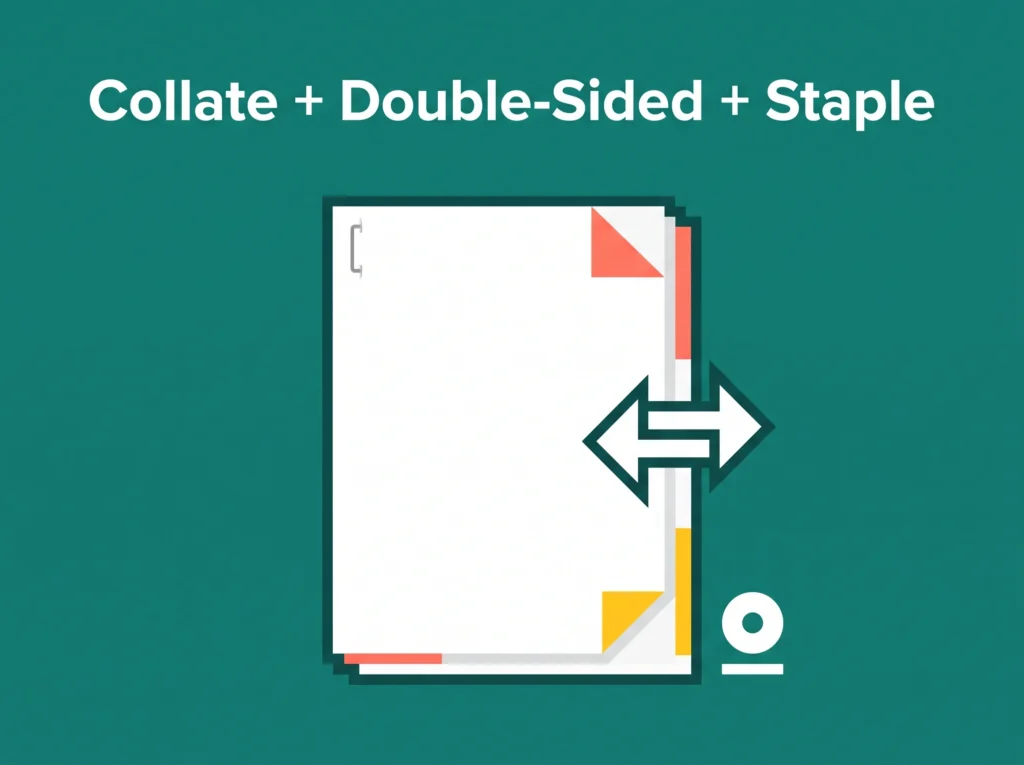
Collate works well with other finishing options.
- Collate + double-sided (duplex printing): Each set prints front and back in order. This is great for saving paper on longer documents.
- Collate + staple: Many office printers can staple each finished set automatically. “Collated and stapled” simply means every copy comes out complete and stapled.
- Collate + hole punch: Some multifunction printers can punch each set, which is perfect for binders.
Quick check: Stapling usually needs collate turned on. Without it, the printer can’t tell where one set ends.
7. What Does Collating Mean in Commercial Printing?
In commercial printing, collating is a key finishing step. Print shops use digital printing or offset printing to print sheets, then gather them in order before folding, saddle stitching (staples along the spine), or perfect binding (glued spines, like paperback books).
This matters for printed items like:
- Booklets and catalogs
- Instruction manuals
- Product inserts and care cards
- Multi-card welcome kits inside custom packaging
For example, brands that order printed boxes with multi-page inserts need those pages collated so every package ships with a complete, ordered set. At ONO Custom Boxes, we see first-hand how a well-collated insert makes the unboxing feel organized and professional.
Tip for ordering print jobs: When you get a quote, ask whether collating, folding, and binding are included. It’s a small detail that keeps your project on budget.
Frequently Asked Questions
What does collate mean when printing?
Collate means printing multiple copies of a multi-page document in complete, ordered sets, like 1-2-3, 1-2-3.
What is the difference between collated and uncollated?
Collated prints full sets in order. Uncollated prints all copies of each page together, like 1-1, 2-2, 3-3.
Should I print collated or uncollated?
Choose collated for reports, handouts, and manuals. Choose uncollated when you need stacks of the same page.
Does collating slow down printing?
Sometimes, yes. Some printers take a little longer because they process the full document for each set. Modern printers usually handle it fast.
Why is collate greyed out?
Usually because copies are set to 1. Increase copies to 2 or more. If it’s still greyed out, update your printer driver.
Is collate on by default?
Yes, on most printers and apps like Word, Acrobat, and Chrome.
What does collate mean on a copier?
On most copiers, “Sort” means collated and “Group” means uncollated.
Does collate work with double-sided printing?
Yes. Each set prints front and back in the right order.
What does collated and stapled mean?
Each copy prints as a complete set and is stapled automatically by the printer.
Does collate matter for a single copy?
No. With one copy, your pages already print in order.
Final Thoughts
Now you know exactly what collate means when printing. It’s a simple setting with a big payoff: complete, ordered sets of pages, ready to use. Keep collate on for most multi-page documents, switch to uncollated for single-page stacks, and always check print preview first. Happy printing!